Clean the screen and keep brightness and colors stable before starting. Switch patterns by hand at first; you do not need to memorize shortcuts or understand every setting.
Start with a clean screen
Clean the screen according to the device maker’s instructions. Dust, fingerprints and marks or bubbles on a protector can interfere with inspection. Do not press hard on the panel or scrape it to investigate a point.
Dry your fingers and the screen before checking touch. If several displays are connected, move the browser onto the display you want to inspect. Patterns appear only on the screen showing the page.
Keep brightness and colors steady
Start at a comfortable everyday brightness. Temporarily pause automatic brightness, night modes, adaptive color and dynamic contrast if they change the picture. Names vary by device; note the original settings and restore them afterwards.
Check pixels, colors and gray steps in normal room light. Use a dimmer room for backlight bleed, keeping your usual brightness. Inspect OLED patterns briefly and avoid leaving static pictures at maximum brightness.
Check resolution and browser zoom on a computer
Use the display’s recommended or native resolution in system settings. Resolution describes the picture’s horizontal and vertical pixel count. Set browser zoom to 100% so fine-line and text patterns are not additionally resized by the browser.
Choose a pattern and start
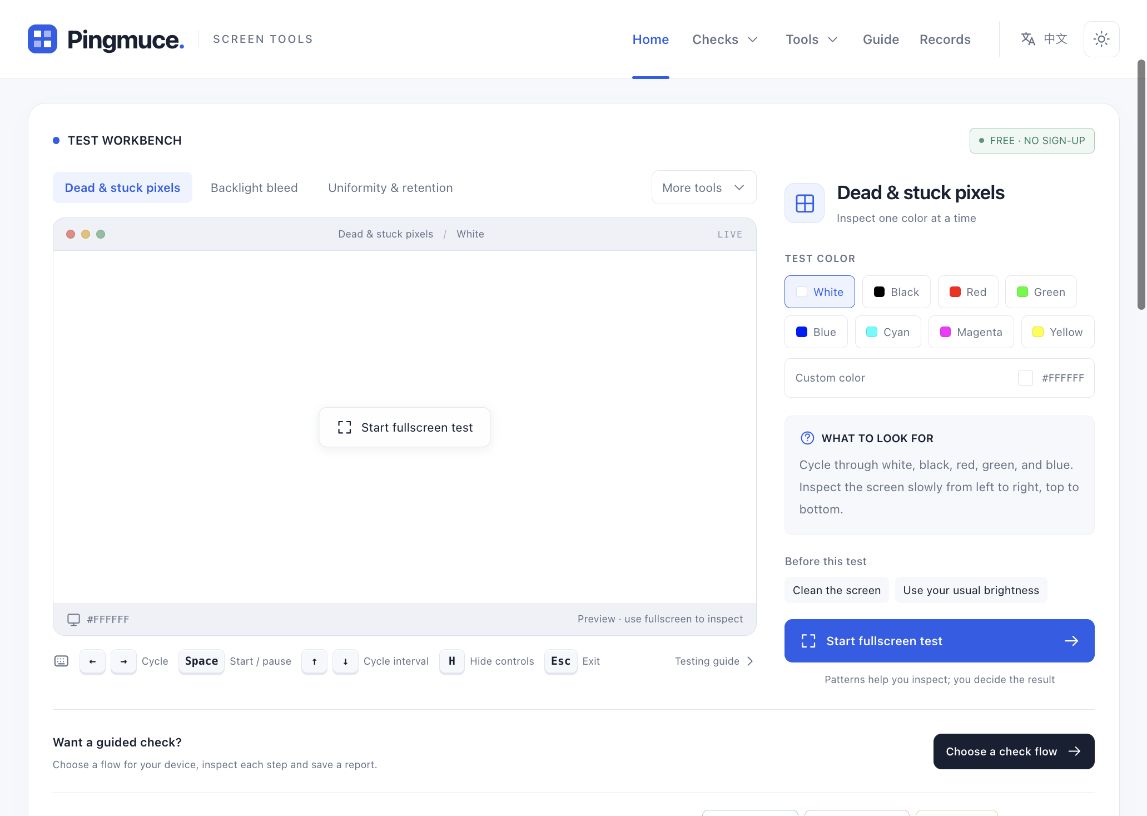
Choose Dead & stuck pixels on the home workbench for a single test, or open Quick check for a sequence. The small workbench picture is a preview; inspect the center, edges and corners after starting the fullscreen view.
Read the preparation advice
Read the preparation advice and What to look for beside the start control.
Choose a pattern and start
Choose a starting pattern, such as white, then use the start button.
Switch slowly by hand
Use the on-screen controls to change patterns. Start with manual changes before trying cycling.
Exit and revisit the guide
Press Esc on a computer or use the exit control on a phone. Read the observation guide after leaving the test.
What if phone browser bars remain?
Some phone browsers limit native fullscreen, so Pingmuce uses a full-window fallback. Browser bars or system indicators may remain. Inspect the area covered by the pattern without assuming that uncovered or system-controlled edges have been tested.
Record Not sure or skip a step you cannot inspect or that does not apply. The backlight-bleed step in Quick check is for LCD; skip it on a confirmed OLED device or choose the OLED flow.